


In this section we will cover how to login to Microsoft Office 365.
Logging in to Office 365 can be achieved from a school computer or from home and it allows you to access online apps such as Outlook, Teams, OneNote and OneDrive.
We’ll cover these apps in their own separate section.

Open a new web browser
Either choose Google Chrome or Microsoft Edge and type in:
office.com into the search bar at the top of the page and press the Enter button on your keyboard. This will load the office.com website.

Click on the Sign in button
When the page loads click on the orange sign in button.
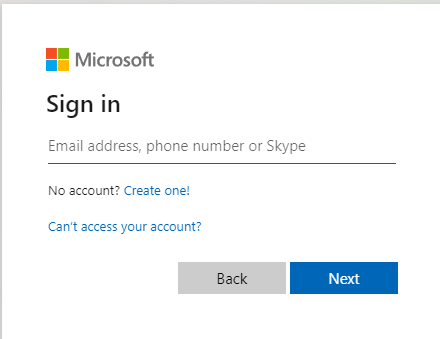
Enter your school email address
The beginning of your school email will be the same as what you used to login to the computer at school with followed by an @ symbol and the domain name of your school.
Click the Next button when completed.
Please check with your teacher if you are unsure.
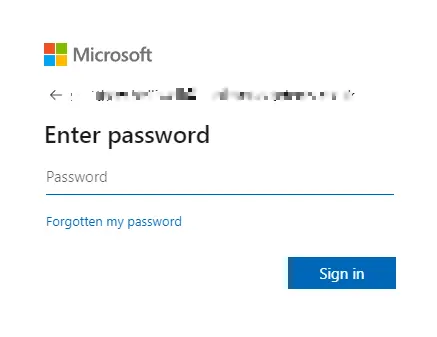
Enter your password
This is usually the same password that you used to login to the computer at school.
Click on the Sign in button when complete.

You are now logged in to Office 365!
Congratulations! You should now be logged into Microsoft Office 365. On the left hand side you should be able to see lots of apps that you have access to.
You can also click on the 9 dots at the top left of the screen to access the menu to see more apps that you can choose from.
Clicking on any of the app logos from the left will take you to the first page of the app where you will be able to do a number of different things depending on the app that you chose.